
Anime Shop Simulator Controls
How first-person stocking, the register numpad, and demo accessibility actually feel — binds may still move before September 2026.
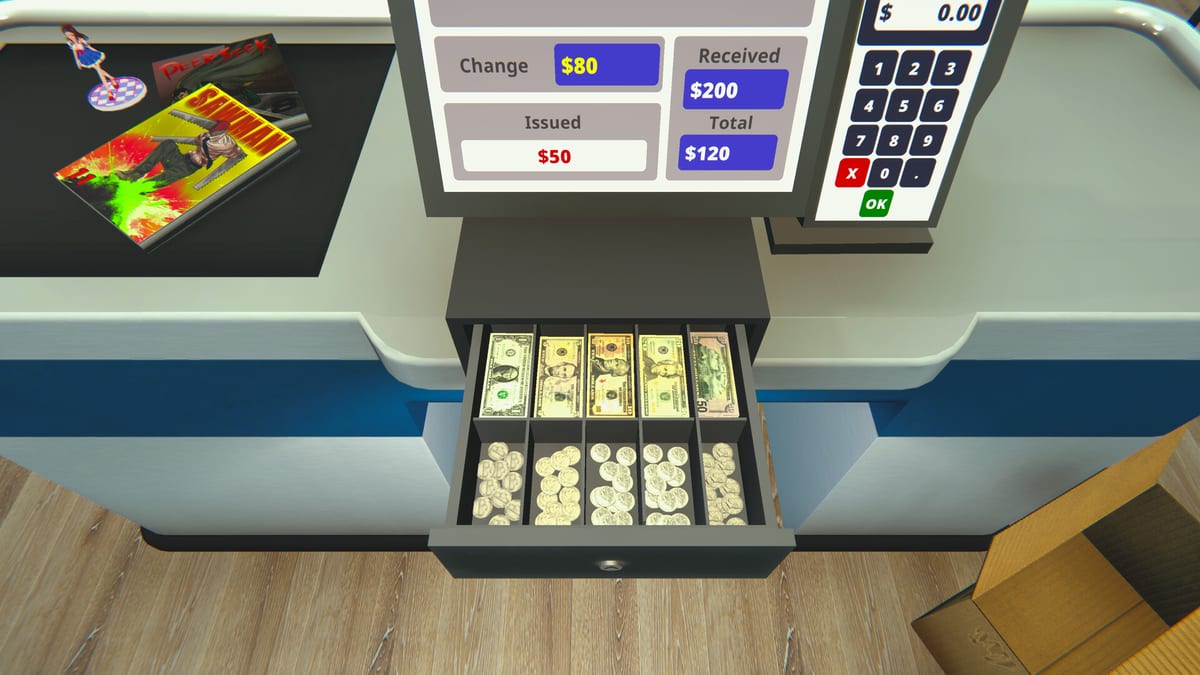
Anime Shop Simulator is a first-person hands-on shop sim, not a cursor-on-spreadsheet manager. You look with the mouse, walk the aisle, pick up boxes, seat product on fixtures, and then pivot to a cash drawer that wants number keys. This page describes the interaction model seen in the February 2026 demo and earlier playtests. It is not a frozen official bind table. One More Time can remap prompts in any patch before the 11 September 2026 launch, and even demo 1.5.0 was an architecture pass.
If a prompt on your screen disagrees with a sentence here, trust the prompt. Then finish the shift using Getting Started so the controls have a job to do.
First-person interaction model
You occupy a human-height camera inside the store. Movement is the usual FPS tank: walk, look, interact with whatever the crosshair or highlight is hugging. The important objects are physical:
- The shop computer (licenses, orders, prices, shop name, some expansion).
- Delivered cartons on the floor or in the stockroom.
- Shelf slots that accept a matching product type.
- The register (scan, tender, change).
- Trash for cardboard.
- Display furniture for collections and, later, a TCG table.
You do not paint stock onto a grid from a god camera. If the box is in the back, you carry it. If the facing is at ankle height, you look down. That is why shop layout and controls are the same skill: a pretty plan that forces a three-meter detour every restock will wreck your hands and your queue.
Interact, carry, and place are distinct beats. Rushing place-into-wrong-fixture wastes the animation and often leaves a unit in your hands while a customer arrives. When in doubt, face the shelf squarely, wait for the highlight, then commit.
Mouse, keyboard, and typical shop-sim binds
Expect a keyboard + mouse default. Playtests and adjacent One More Time / shop-sim muscle memory suggest:
- WASD (or arrows) to walk.
- Mouse to look and to aim the interact highlight.
- Left click or a dedicated use key to confirm (computer buttons, scan, place).
- A pick up / drop key for boxes and loose goods.
- Sprint for the stockroom-to-register dash.
- Escape or a menu key for pause, settings, and quit.
Treat that list as a genre sketch. The demo will show button hints when you hover a new station; learn those. Rebind in settings if you are left-handed or if look sensitivity makes shelf aiming miserable. There is no requirement to play with a controller — Steam Deck compatibility is still listed as unknown on the full app, so do not assume a polished gamepad scheme in the demo.
Fine aim matters at three stations: seating a figure on a narrow riser, clicking tiny computer rows, and picking a specific bill in the drawer. Lower look sensitivity a notch if you keep overshooting shelf slots.
Working the register with the numpad
Checkout is the bind people remember. You scan each item (playtesters watch a total build), then tender.
Cash: the game wants you to make change, not just smash a “correct change” macro. Several first-look videos cheer that the numpad works. Use it. Looking down to hunt number-row keys while a queue grows is how tickets stall. If you push too much money into the customer’s hand, hover the cursor over the extra bill in the register to remove it — that tip is in the demo’s own checkout guidance.
Cards: a credit-card tender skips the drawer. Still scan honestly. Speedrunners of supermarket sims love to skip scans; this demo is short enough that you should learn the real motion.
Stand slightly off-center so you can peek the queue and the nearest empty bay without spinning 180 degrees after every thank-you. In co-op, only one person should own the drawer unless you have two registers. Four people mashing scan is how you double-charge a guest or drop a box on the scanner.
Age-gated SKUs can add an ID check prompt. That is a controls issue as much as a rules issue: do not auto-mash confirm. Special clients will punish that habit later.
Carrying stock, trash, and the back room
The stockroom is a second set of binds in practice: pick up a unit, rotate your body through a door, and place without clipping a fixture. Keep that path clear. Cardboard you have not trashed becomes a physics obstacle. Playtesters literally throw empty boxes toward a trash solution; whatever the current interact prompt is, do not leave cartons in the customer lane.
When you unbox boosters for the TCG layer, do it in the back if you can. Ripping packs at the register blocks the scan animation and invites you to pocket a rare while four guests wait. Carry sealed boxes to the low card bay, then take a single pack to a counter that is not the checkout.
If a “stock” button or panel appears on a fixture, it is usually a price and facing shortcut, not a teleport. You still walk. Use it to avoid opening the computer for a two-dollar tweak, then get back to holes on the shelf.
Accessibility and save anytime
The demo store page lists Save Anytime under accessibility / gameplay. Use it.
- Save before a large order so a misclick does not wipe the till.
- Save before hosting co-op, in case a lobby bug boots you.
- Save before you rearrange half the store into a maze.
That feature is the honest accessibility win in the current build. Other comfort options (subtitles, language, volume, look invert, sensitivity) should be checked in your settings menu; this wiki will not invent a full list. If you need larger UI or colorblind aids and cannot find them, assume they may still be in flight for 1.0 and play with brighter wallpaper / less clutter in the meantime — layout is an accessibility tool too, which is why shop layout tells you to keep aisles wide.
Pause exists. Use it when the music loop grinds you down; several demo reviews mentioned the track wearing out long before the stock loop did.
Co-op and patch caveats
In four-player online, everyone has the same body. There is no unique “manager only” bind for the computer in the design pitch — which means you need social rules, not key rules. Call out “I have the computer” in voice. Do not drag the same carton. Host on the machine that can keep a stable framerate; hitching at the register feels like a missed scan. System requirements and co-op cover the rest, including the February 2026 server-create rewrite.
Bindings, prompts, and till math can change in later demo drops. If a patch notes a new hold-to-place or a gamepad scheme, prefer those notes over this page. For a guided first session after you have binds in muscle memory, return to the demo walkthrough. For what the game feels like as a product, use the review.
Frequently Asked Questions
Quick answers for demo players and launch-day shopkeepers.
What are the official keybinds for Anime Shop Simulator?
There is no frozen public chart this wiki will invent. The demo is first-person WASD-and-mouse in playtests, with on-screen prompts at each station. Check in-game settings after every patch.
Does the checkout numpad actually work?
Yes in playtests and first-look videos. Scan, then punch cash amounts on the numpad. If you overpay change, hover the extra bill in the register to pull it back.
Can I save whenever I want in the demo?
The demo lists Save Anytime as an accessibility / gameplay feature. Save before big orders, layout experiments, and co-op host attempts.
Is there full controller or Steam Deck support?
Do not assume it. The full app’s Deck status has been listed as unknown. Keyboard and mouse is the interaction model these notes describe. See system requirements.
Why do I keep dropping boxes in the aisle?
The game treats cardboard as physics. Carry to the shelf, place on a highlight, then trash the empty carton in the back. Layout tips that shorten that path are in shop layout.
Should four co-op players all use the register?
No. One person owns the drawer. The others restock, run the computer, or work the floor. Role split is in the co-op guide.